NoGuard.AI

Chat gets you the answer.Build does the work.

Start in the web chat, free. When you want NoGuard working on your files instead of telling you what to change, any credit pack unlocks Build mode in the CLI and the desktop app.

See how to unlock Build
  1. 1Start in the chat

    Online chat

    Chat

    Ask anything at noguard.ai, with nothing to install. It answers in full, with the code.
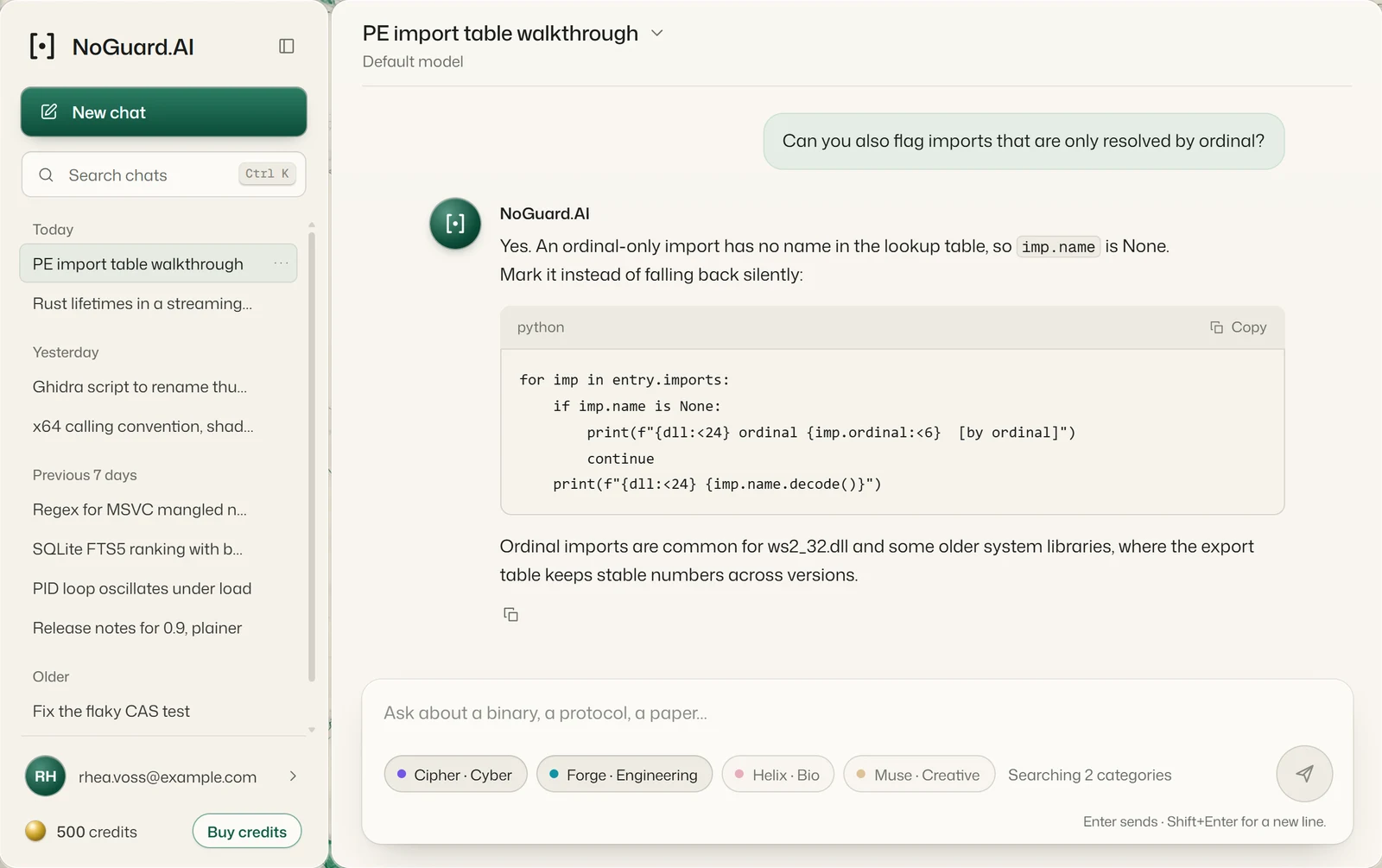
    The NoGuard web chat: a conversation with code, the account and credits in the rail.

    Start here, with free credits

  2. 2Unlock

  3. 3Build

    CLI

    Chat + Build

    Builds in your repo, from your terminal. Windows, macOS and Linux.

    Build with any pack

    Desktop app

    Chat + Build

    The whole workstation for Windows: a team of agents, hex, disassembly and a debugger.

    Comes with any pack
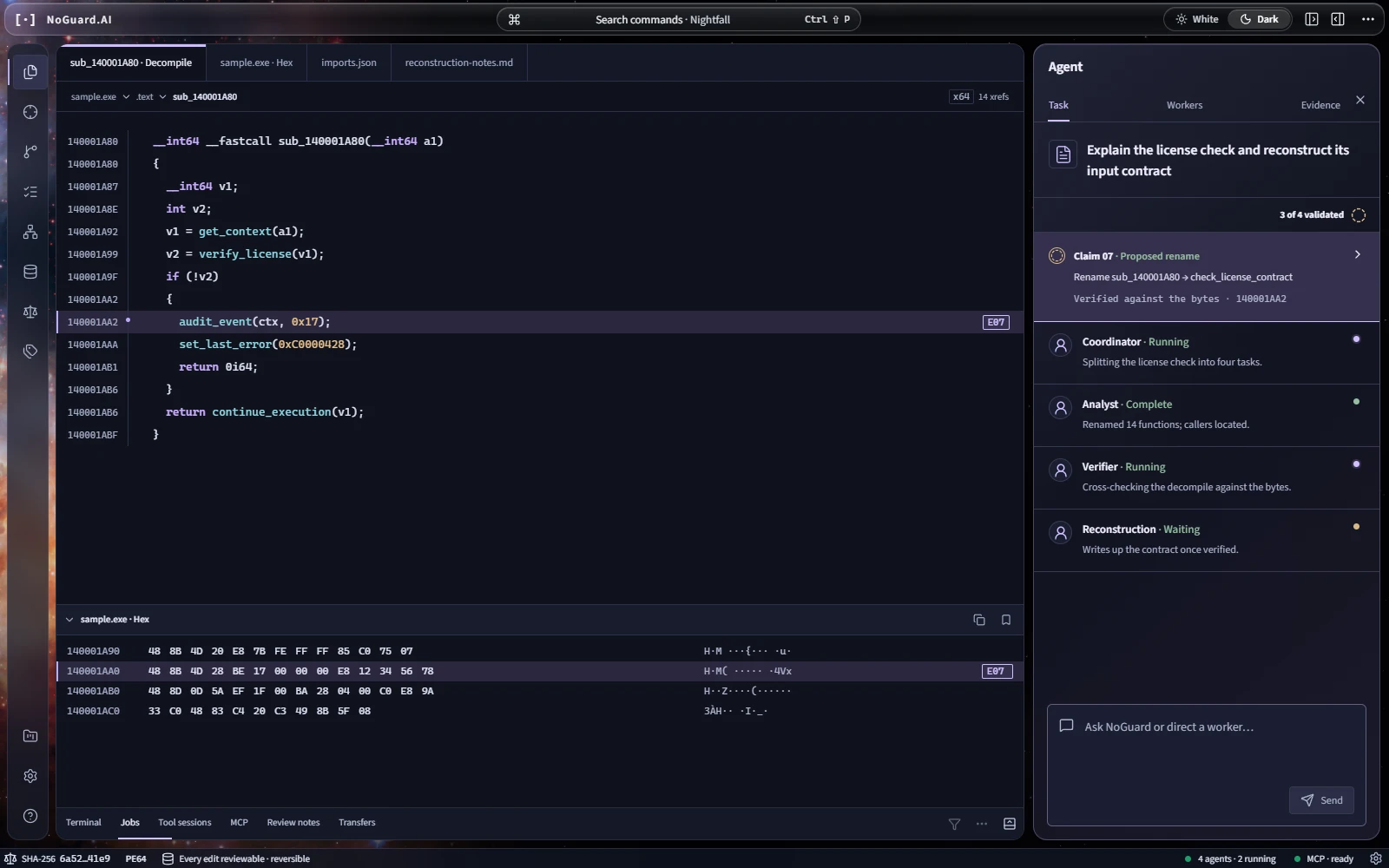
    The NoGuard desktop app: decompiled code beside an agent team planning and verifying a task.

Screens shown with synthetic content.

Same request. Very different result.

In Chat, NoGuard tells you what to change. In Build, it goes into your project and changes it, asking you first.

In Chat

Any account

make the port configurable with an env var

Change the call that starts your server so it reads PORT, with 3000 as the fallback:

app.listen(Number(process.env.PORT ?? 3000))

Then set PORT wherever you start the app.

which file is that in?

I can’t see your project from this chat. Paste your server file here and I’ll point to the line.

You find the file, make the change and run it.

In Build

With any pack
❯ make the port configurable with an env var ● Grep("listen\(") ⎿ Found 1 line ● Read(src/server.ts) ⎿ Read 48 lines ● Edit(src/server.ts) 12 - app.listen(3000) 12 + app.listen(Number(process.env.PORT ?? 3000)) ? Allow NoGuard to make this edit? yes · always · no › y ⎿ Updated src/server.ts ● Bash(npm test) ? Allow NoGuard to run this command? yes · always · no › y ⎿ All tests passed

NoGuard finds the file, makes the edit and runs the tests. You approve each step.

Illustrative sessions. Build is shown in the CLI; the desktop app does the same work in its own window.

The CLI builds in your repo.NoGuard in your terminal.

The CLI is a command you run in a project folder, on Windows, macOS or Linux. From there NoGuard reads and searches your files, edits them, and runs builds, tests and git, then tells you what it did. It asks before it changes anything, and you can tell it to ask less once you trust it.

Reach for it when

  • Your work is source code in a folder or a repo
  • You already live in a terminal, or you’re on macOS or Linux
  • You want one-off tasks in scripts, with noguard -p

Free accounts can sign in and chat here. Working on your files and running commands comes with any credit pack. How to unlock

New to this? Your first build, step by stepFull CLI guide: commands, permissions, troubleshooting

Set it up in three steps

  1. Install it.
    $ npm install -g noguard
    Needs Node.js 18 or later, from nodejs.org.
  2. Sign in.
    $ noguard login
    Approve the code in the browser window that opens. Your password never goes into the terminal.
  3. Start it in your project.
    $ cd my-project
    $ noguard
    Say what you want done and press Enter. Type /exit to leave.
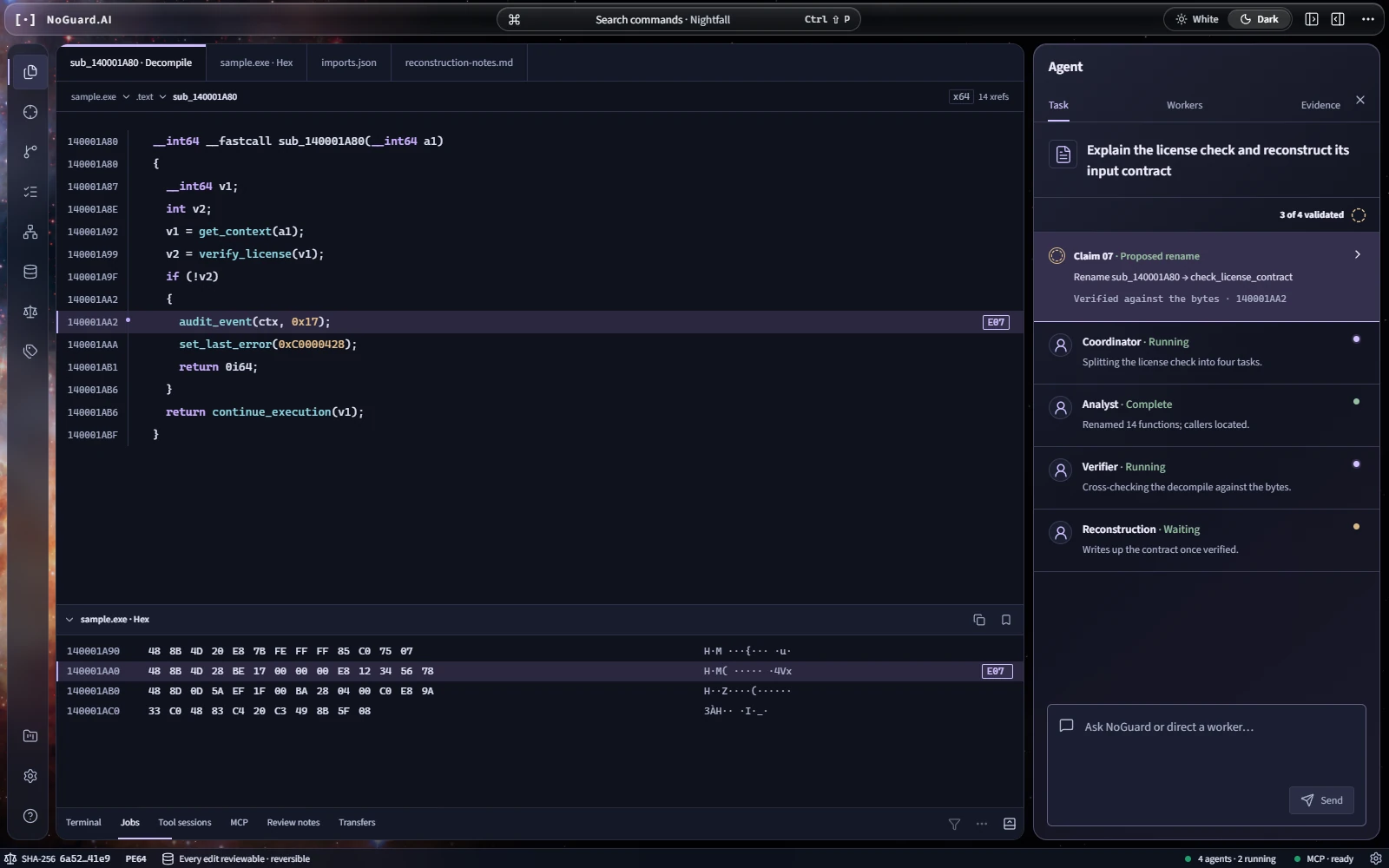
The NoGuard workstation: decompiled code and a hex view beside the agent panel, where the coordinator, analyst, verifier and reconstruction agents report their progress.
The NoGuard workstation, shown with synthetic content.

The desktop app is the whole workstation.Chat and Build in one window.

The app is NoGuard’s full workstation for Windows. Hand it a task and a team of agents works on your binary or your repo, with the code and the bytes in view and a verifier checking each claim before you see it. Every change is reviewed before it reaches your files, and you can undo it.

Reach for it when

  • You’re taking apart a binary, a protocol or a file format
  • You want hex, disassembly, graph views and a debugger beside the agents
  • You already use IDA Pro, Ghidra or MCP servers

The download and the sign-in come with any credit pack. How to unlock

Set it up in four steps

  1. 1Get any credit pack.It unlocks the app, and your credits work everywhere you sign in. See the packs
  2. 2Download for Windows.From this page, or any time from Account, Desktop app.
  3. 3Sign in with your browser.The app shows a code. Approve it on noguard.ai and you’re in; no password goes into the app.
  4. 4Open your target and pick a mode.Open a binary with Ctrl+O or drop it on the window. Ask in Chat, or switch to Build and hand it the task.

What each one can do.

One account and one balance across all three. A lock means it comes with any credit pack.

FeatureOnline chatCLIDesktop app
Chat with NoGuardAny accountAny accountAny pack
NoGuard UltraOur most capable modelAny packAny packAny pack
Build modeEdits your files and runs commandsNot includedAny packAny pack
A team of agents with a verifierNot includedNot includedAny pack
Hex, disassembly, graph views and a debuggerNot includedNot includedAny pack
IDA Pro, Ghidra and MCP serversNot includedNot includedAny pack
Runs onAny browserWindows, macOS, LinuxWindows, 64-bit
To set upNothing to installOne npm commandInstaller from your account

Before you buy.

Do I need a separate pack for each one?
No. One pack of any size unlocks Build in the CLI and the desktop app, plus NoGuard Ultra. All of them spend from the same balance.
Can I try the CLI before I buy?
Yes. Any account with a verified email can sign in and chat from the terminal on its free credits. Working on your files and running commands is the part that needs a pack.
Which one should I start with?
If your work is source code, the CLI is the quickest way in: one install command on any operating system. If you’re taking apart a binary, or want a debugger and the agent team beside you, get the desktop app. A pack covers both, so you can use whichever suits the task.
What does Build cost?
Each step of a task (reading files, running a command, answering) is one request, priced by its length and the model used, so a task that reads a lot of code costs more than a quick question. The CLI shows what each task cost and what’s left.
Is it a subscription?
No. You buy a pack when you need one, and the credits never expire.

Guides

All guides and updates

One pack unlocks all of it.

Build mode in the CLI and the desktop app, plus NoGuard Ultra. No subscription, and the credits never expire. Pay by card or crypto.

All the ways to pay